Exprizo
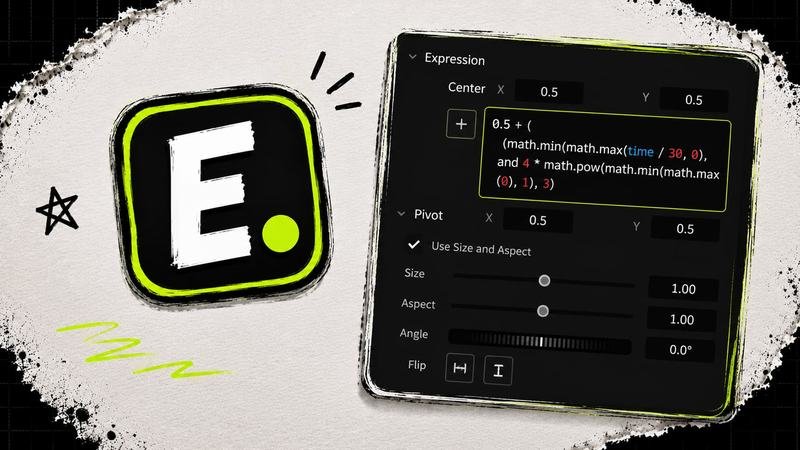
Save Fusion expressions as reusable presets and reapply them like drag-and-drop effects across your Resolve/Fusion work.
DaVinci Resolve Studio required for Resolve 21.1+
Free1,572 downloads Download
Write a review
After you download Exprizo from the store, its email includes a link to your download page. Write your review on that page and it appears here labelled Verified download.
Write a review as a Clipizo member
Uses a free Clipizo account. Your review is labelled Clipizo member and appears after approval.
Verified reviews come from Clipizo downloads · Member reviews are moderated · No review is hidden for its rating.
Overview
Exprizo is built for expression-heavy Fusion work where the same expression setups get rebuilt again and again.
Save expressions into an organized library, reuse them like drag-and-drop effects, apply them across selected nodes, and keep expression-heavy comps easier to manage.
Requirements
- Software
- DaVinci Resolve Studio for Resolve 21.1 and later; the Free edition works with Resolve 21.0 and older (see Compatibility)
- Works in
- The Fusion page
- Operating system
- Windows or macOS (separate installer ZIPs)
- License
- License activation included; free updates for Exprizo v1.x
Questions about your setup? Ask in the Clipizo Discord or send us a message.
Compatibility
DaVinci Resolve 21.1 and later: Studio is required.
DaVinci Resolve 21.0 and older: Exprizo v1.1 works with the Free edition.
Blackmagic introduced this Python/advanced-scripting restriction in 21.1. It was not introduced in 21.0 or earlier versions; 21.0.x maintenance releases are before this cutoff.
Key features
- Save expressions as reusable presets for future comps.
- Reapply saved expressions quickly like drag-and-drop effects.
- Organize expression presets into folders for faster recall.
- Add, edit, and apply expressions across selected Resolve/Fusion controls.
Best for
- Reusable expression effects
- Technical motion graphics rigs
- Expression-heavy Fusion templates
- Fast setup reuse across selected nodes
Thank you, first supporters
Exprizo was paid until October 14, 2026. Everyone listed below bought it before it went free, and their support helped build it.
- JhonV
- Suman Knuuttila
Many more supporters chose to remain anonymous. Thank you to them too.
Setup & help guide for Exprizo Install, find it in Resolve, the controls, common problems, uninstall
Exprizo v1.2 desktop source. Check your installed version: the older v1.1 compatibility notice on this page is separate. v1.2 includes the Resolve 21.1 Free bridge; it is not Exprizo V2 or an AI assistant.
Install
- Extract the installer ZIP. Run Exprizo-installer.exe on Windows, or the supplied Exprizo installer app on macOS.
- Follow the installer and keep the installed application folder in place. The v1.2 Mac build is for Apple Silicon / macOS 13+ and defaults to ~/Applications/Clipizo; it rejects protected Documents, Desktop, Downloads and iCloud install folders.
- Restart Resolve if it was open. Open a composition on the Fusion page and run Workspace → Scripts → Clipizo → Exprizo.
- Paste the license key from your download email when prompted and activate online. v1.2 checks the license every 30 days and works offline between checks.
Where it appears in Resolve
Exprizo opens as a separate window from Resolve’s Scripts → Clipizo → Exprizo command. Select Fusion nodes to read their expressions; the Edit page is not an expression-editing workspace.
Controls in plain words
Some controls appear only after choosing the relevant mode.
Nodes and Add Expression
- Nodes / ALL
- Nodes shows expressions on selected nodes. ALL shows expressions across the current composition.
- Pin window / Pin node
- The window pin keeps Exprizo above Resolve. A node pin keeps that node visible when the Resolve selection changes.
- Refresh
- Rereads expressions without discarding unapplied edits.
- Expression field / large editor
- Edits the expression text; open the large editor for more space. Edits are pending until applied.
- Apply / red * marker
- Apply writes edits to Resolve. A red * means that card has unapplied changes.
- Undo / X (Remove)
- Undo restores the last pending, applied or removed expression change. X removes the expression from its control; removal undo restores it while the control remains empty.
- Pickwhip
- Drag between controls inside Exprizo to make a reference. It does not drop onto the Fusion Inspector.
- + (save beside an expression) / Browse
- Saves the expression as a preset, or loads a saved expression into the active field.
- Add Expression tab / Close Panel
- Opens or closes the right-side panel for adding expressions. Only its tab bump is clickable.
- Node and control selection / Search / Shift-click
- Chooses empty target controls. Common Inspector controls appear first; search finds others. Shift-click selects multiple controls or cards.
- Add / Deselect
- Add writes the panel’s expression to chosen empty controls. Deselect clears selected expression cards.
Saved library
- Saved / folders / uncategorized
- Browse reusable expressions. Double-click a folder to enter it. The built-in uncategorized folder holds unfiled expressions and cannot itself be renamed or removed.
- Search
- Finds saved expression titles across folders; matching folder names also appear.
- Browse (Saved toolbar)
- Opens the public Clipizo catalog in your browser. This is different from Browse beside an expression field.
- Blue + / Add folder / Add button
- Creates a folder or a saved expression entry.
- Double-click entry / Edit / Copy / disclosure arrow
- Stages a saved expression for use, edits its saved content, copies its code, or expands its preview.
- Ctrl-click / drag-selection rectangle
- Toggles items in a selection or selects several folders from an empty area.
- Trash / folder context menu
- Removes selected items after confirmation. Folder actions distinguish Delete all from Delete and keep content.
- Menu → History / Export / Import
- Opens saved-library history, exports a library file or imports one. Export before uninstalling if you want to retain your presets.
Settings and support
- Settings cog / Button guide
- Opens settings and the in-app explanation of button icons.
- License: Activate / Refresh / Deactivate
- Activates this computer, checks a due license renewal or releases this computer’s activation.
- Share anonymous usage and crash analytics
- Turns optional diagnostic reporting on or off.
- Open folders
- Opens the installation and state folders for troubleshooting.
- Support → Copy Diagnostics
- Copies versions, Resolve connection state and recent logs for support. The license key is excluded.
- Uninstall Exprizo
- Opens the removal confirmation; this removes Exprizo’s own state as well as the app.
Common problems
- No nodes or a connection timeout
- Open the Fusion page, select a node and run Scripts → Clipizo → Exprizo again to reconnect. ALL includes only nodes with expressions.
- An edit is not visible in Resolve
- Look for the red * and press Apply. In Add Expression, choose the correct node/control, then press Add. Failed additions retain the expression so you can retry.
- A modifier control appears twice
- Host controls and modifier controls are distinct, for example a Text+ control and its Follower control. Choose the intended owner.
- License refresh is due while offline
- Connect to the internet and use Refresh in the license screen, or let the app retry.
- Mac installer refuses a folder
- Use its default Applications location. This build deliberately rejects privacy-protected folders.
Uninstall
- Export your Saved library first if you want to keep it.
- Open Settings → Uninstall Exprizo and review the confirmation. It deactivates this device and removes Exprizo, its own state data and the Resolve launcher. The shared Clipizo runtime and other Clipizo apps remain.
- Restart Resolve to refresh the Scripts menu.
Still stuck? Contact Clipizo with the plugin version, Resolve version, operating system and the exact error message.
Get Exprizo
Check the requirements first.
Free1,572 downloads Download
Updates log
v1.1 Exprizo 1.1
What's New in 1.1
- Added support for modifier/source-op expressions, including Text+ StyledTextFollower controls.
- Exprizo can now detect and edit expressions like Follower1.WordOffset when selecting the main Text+ node.
- Add Expression now opens much faster, especially on Text+ nodes.
- Add Expression now keeps duplicate host/modifier controls separate, for example Text1.WordOffset and Follower1.WordOffset.
- Saved Expressions now has search, including expression-title search across folders.
- Folder search is more accurate: folder cards only show when the folder name matches.
- Text/Text+ expression reading is much faster and less likely to hit Resolve bridge timeouts.
- Expression deletion and refresh behavior is smoother.
- Improved loading/empty states so Exprizo feels less blocked while reading Resolve.
- Clearer Edit Page warning: Exprizo only works in Fusion.
- Updated license handling and clearer activation-state messages.
- EULA is now included with the installer package.
Bug Fixes
- Fixed missing Follower/modifier expressions on Text+ nodes.
- Fixed slow Text+ selection scans.
- Fixed false timeout messages after adding expressions.
- Fixed stale Add Expression loading messages.
- Fixed Add Expression panel not updating correctly after Resolve selection changes.
- Fixed inaccurate Saved Expressions folder search results.
- Fixed some activation-required text clipping.
- Improved installer packaging and release validation.