Amazing Plugin! Nice!
Graphizo
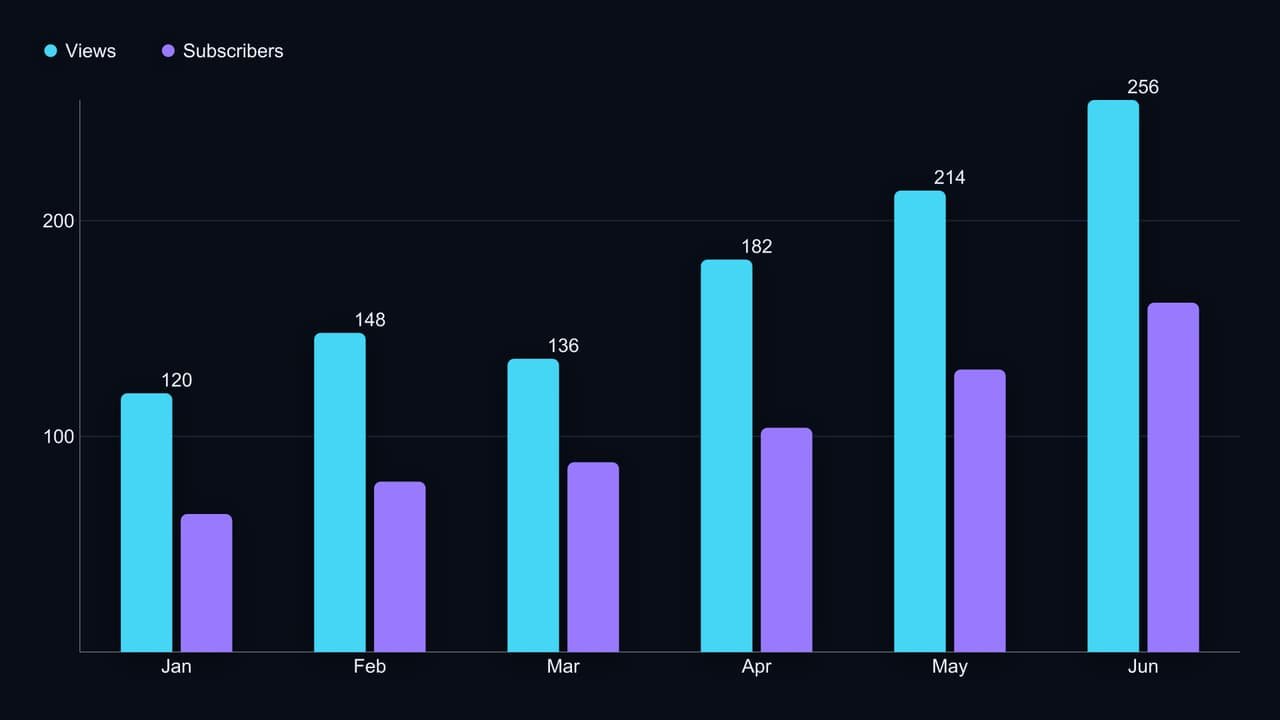
Animated charts on the Fusion page: bars, lines, donuts, gauges, bar chart races and more, from typed values or pasted data. Free to download.
Free528 downloads Download
Tolles Plugin
Graphizo
I just installed the latest update to Resolve Studio, to make sure everything was current. I dragged the .lua file into a new Fusion project, restarted Resolve, and was instantly able to get the animated demo Graph working just fine. I will continue experimenting with .csv files as I have time, and will update. Right now it's responding quickly, and when I go back to the Edit page, it's working just fine, and renders to RAM quickly. I'm running an HP Z800 dual quad core Xeons with 48GB of RAM, and an Nvidia GTX720 with 8GB of RAM.
Write a review
After you download Graphizo, your download email has a Leave a review link. Reviews written there appear here labelled Verified download.
Write a review as a Clipizo member
Uses a free Clipizo account. Your review is labelled Clipizo member and appears after approval.
Verified reviews come from Clipizo downloads · Member reviews are moderated · No review is hidden for its rating.
Overview
Add a Graphizo node, pick one of 17 chart types and type your numbers in, or paste a table from a spreadsheet. A Creator Starter gives you a finished animation to begin with: swap in your own data, title and source credit.
With Playback set to Auto Entrance (every Starter sets it), charts build in by themselves: bars grow, lines draw on and pies sweep, with no keyframes. Keyframe a value and the chart springs to the new number. Five looks set the background, text, grid and palette together, and the canvas presets cover YouTube, Shorts, square and 4K.
Requirements
- Software
- DaVinci Resolve 21.1 or newer, Free or Studio, on the Fusion page, or Fusion Studio
- Operating system
- Windows 10 or 11, 64-bit; macOS 15 or later on Apple silicon (Resolve 21.1's minimum)
- License
- None: no key, no activation and no account
- Download
- One ZIP for Windows or macOS with the Studio installer, Graphizo.fuse, a guide, three example CSV files and the Graphizo AI skill file
Questions about your setup? Ask in the Clipizo Discord or send us a message.
Key features
- 17 chart types: Bar, Grouped Bar, Stacked Bar, Line, Area, Scatter, Pie, Donut, Rose, Radar, Parliament, Bar Chart Race, Waterfall, Gauge, Funnel, Heatmap and Bubble.
- Data your way: up to 16 fields you can keyframe, or a pasted table (comma, tab or semicolon separated; up to 64 rows and 6 series). On Resolve Studio, Load CSV also reads a file.
- Bar chart races: up to 64 categories and 128 snapshots, with rank numbers, a timeline caption and smooth overtakes.
- Animation without keyframes: Auto Entrance, Auto In + Out and Loop, with stagger, easing, numbers that count up and a moving draw head on lines.
- Value transitions: keyframe a field and bars, slices, points and the axis move to the new value, Instant, Smooth, Spring or Bouncy.
- Five creator looks (Midnight, Studio Lime, Editorial Paper, Neon and Sunset) or your own colors, with a soft shadow and an optional glow.
- Four starters: Audience Race, Growth Story, Traffic Breakdown and Ranked Comparison.
- Title, subtitle and source credit, a target line, a highlighted item, number formats (compact, separators, prefix, suffix, percent) and your installed fonts for each kind of text.
- Canvas presets for YouTube, Shorts, Square and YouTube 4K, a transparent background for overlays, and fast drawing with Fusion's own vector renderer, so the viewer follows your edits.
- Free download, no key.
Best for
- Data videos
- Bar chart races
- Channel analytics recaps
- Explainer videos
- Finance and business videos
- Shorts and Reels
Setup & help guide for Graphizo Install, find it in Resolve, the controls, common problems, uninstall
Graphizo v1.0, the animated charts Fuse.
Install
- Extract the complete ZIP before installing, and read legal/CLIPIZO_PRODUCT_LICENSE.txt. The ZIP also holds CREATOR_GUIDE.md, three example CSV files and the Graphizo AI skill (Graphizo AI Kit/SKILL.md): it lets an AI make chart presets, the rest of its kit is free at github.com/Clipizo/graphizo_skill, and its guide is in the Clipizo Library under AI Integration.
- Resolve Studio / Fusion Studio: drag Graphizo studio installer.lua into the Nodes area of the Fusion page and click I Agree. It copies Graphizo.fuse into a folder Resolve loads Fuses from, normally your user Fuses folder below, and changes no settings; an older Graphizo.fuse it finds is kept as Graphizo.fuse.previous, which Resolve ignores. The result appears in the Console. Then restart.
- Resolve Free (works in Studio too): close Resolve and copy Graphizo.fuse into your user Fuses folder, creating it if needed. Resolve Free doesn't run the Studio installer: dragged in there, it installs nothing and shows the exact Fuses folder in the Console.
- Windows user Fuses folder: %APPDATA%\Blackmagic Design\DaVinci Resolve\Support\Fusion\Fuses
- macOS user Fuses folder: ~/Library/Application Support/Blackmagic Design/DaVinci Resolve/Fusion/Fuses/
- Keep one copy of Graphizo in your Fuses folders, and restart Resolve after installing or updating.
Where it appears in Resolve
On the Fusion page, press Shift+Space and type Graphizo. In the Effects Library it is under Clipizo.
Connect its output to MediaOut1, or to a Merge over your footage. It draws the chart itself and needs nothing connected to its input.
It is a Fusion node, not an Edit page effect.
Controls in plain words
Some controls appear only after choosing the relevant mode.
Controls
- Graph Type
- Bar, Grouped Bar, Stacked Bar, Line, Area, Scatter, Pie, Donut, Rose, Radar, Parliament, Bar Chart Race, Waterfall, Gauge, Funnel, Heatmap or Bubble.
- Orientation (Bars)
- Vertical or Horizontal bars.
- Creator Look
- Midnight, Studio Lime, Editorial Paper, Neon or Sunset set the background, text, grid and palette together. Custom uses your own colors.
- Creator Starter / Load Starter (Replaces Data)
- Audience Race, Growth Story, Traffic Breakdown or Ranked Comparison: a finished animation with example data. Loading one replaces the chart's data and its look and animation settings.
- Data Source
- Fields: up to 16 labels and values you can keyframe. Text: a table pasted into Data.
- Field Count / Label / Value
- For Fields: how many rows there are, and each row's name and number. Right-click a Value to animate it.
- Data (Label,Value,...)
- For Text: comma-, tab- or semicolon-separated rows, one per line, up to 64 rows and 6 series (Heatmap: 16 columns; Bar Chart Race: 128 snapshot columns). A first line of names or years is read as the header.
- CSV File / Import To / Load CSV
- On Resolve Studio: reads a CSV file into the Data table or into the Fields, and keeps the data in the node. Resolve Free doesn't let scripts read files, so there Load CSV opens the Console with a reminder to paste the data instead.
- Canvas
- YouTube 1920 x 1080, Shorts 1080 x 1920, Square 1080 x 1080, YouTube 4K 3840 x 2160, or Custom with Output Width and Output Height.
- Auto Resolution (Follow Input)
- With an image connected to the input, the chart takes that image's size. The image itself isn't shown: merge the chart over your footage instead.
- Auto Y Range / Y Min / Y Max
- Turn Auto Y Range off to set the value axis yourself, for example 0 to 100.
- Sort (First Series)
- None, Ascending or Descending.
Style
- Transparent Background
- For a chart over footage: merge it over your clip.
- Custom Background / Custom Text Color / Custom Grid Color / Custom Axis Color
- With a Creator Look on, each replaces just that color and shows its picker.
- Depth and Glow
- Shadow, Shadow Softness and Shadow Distance set a soft drop shadow under the data. Glow and Glow Size add a colored glow.
- Show Grid / Show Axis
- The grid lines and the axis.
- Font, Weight / Style, Font Scale
- The main font and its weight or style (one menu, for example Bold), from the fonts installed on your computer, and the text size.
- Show Labels / Show Values
- Category names and number labels.
- Value Format / Number Style / Value Prefix / Value Suffix / Decimals
- Numbers as values or percent; plain, compact (1.3M) or with thousands separators; with your own prefix and suffix.
- Legend
- Outside (Radial), Legend or None.
- Show Title, Title, Title Alignment, Subtitle, Source / Credit
- A title (centered or left), a subtitle and a source credit line.
- Highlight Item (0 = All) / Other Items Opacity
- Keeps one row or series at full strength and fades the others.
- Show Target Line / Target Value / Target Label
- A labeled reference line, such as a goal, on charts with a value axis.
- Lines and Markers, Radial Charts, Waterfall, Parliament
- Sections that appear for the charts that use them.
- Typography / Position
- Each kind of text (category labels, values, axis numbers, the legend, the title and more) can have its own font, size, spacing, offset and alignment.
Animation
- Playback
- Manual Progress (keyframe Progress yourself), Auto Entrance, Auto In + Out or Loop.
- Entrance Start (Frames) / Entrance Duration / Hold (Frames) / Exit Duration / Loop Gap (Frames)
- The timing of the automatic build, in frames.
- Build Mode
- With automatic Playback, None picks a fitting entrance: lines and areas draw on, pies, donuts, roses and gauges sweep, other charts grow. Or choose Grow, Sweep, Draw or Fade.
- Stagger / Stagger Order / Ease
- Offsets the bars from each other, in the order and with the easing you choose.
- Count Up Values
- Number labels count up with the entrance.
- Animated Draw Head
- A moving point at the tip of a line or area as it draws on.
- Value Changes / Transition Frames
- What a keyframed field value does when it changes: Instant, Smooth, Spring or Bouncy, settling over the frames you set.
- Bar Chart Race
- Auto Play Timeline, Timeline Position, Start Frame, Duration (Frames), Visible Ranks, Show Timeline Caption, Show Rank Numbers and Show Bar Tracks.
Colors
- Auto Palette
- On: the Creator Look's palette, or with the Custom look one made from Palette Hue, Palette Spread, Palette Saturation and Palette Lightness. Off: your own Color 1 to Color 6, with any look.
- Color 1 to Color 6
- Your own colors: one per row for a single series, one per series for several.
Common problems
- Not in the tool search
- Extract the ZIP, check that the file still ends in .fuse, and restart Resolve after copying it. Use the user Fuses location for a manual install. Avoid installing a second copy of the same tool.
- An older interface still appears
- Resolve caches Fuse code. Fully restart it, then try a newly added node; an existing node may retain saved values.
- Load CSV opens the Console instead of loading
- Resolve Free doesn't let scripts read files. Open the CSV in a text editor, copy everything, choose Data Source > Text and paste it into Data.
- The first frame is empty
- Starters and automatic playback build the chart in. Play the composition or move a few frames on.
- A label did not change
- Click another control to commit the text. With Data Source set to Text, names come from the first column of Data.
- A control is missing
- The Inspector shows only what the chosen chart uses. Fields 5 to 16 appear when you raise Field Count.
- Text looks different on another computer
- Graphizo uses the fonts installed on the computer. Install the same fonts there.
- A Mac blocks the downloaded file
- Use System Settings > Privacy & Security > Open Anyway.
Uninstall
- Close Resolve / Fusion. Move only Graphizo.fuse out of the Fuses folder where you installed it, to a backup folder outside the Fusion search folders.
- If you used the Studio installer, check the destination it reported (which can be the shared Clipizo/Fuses folder). Leave other Clipizo files in place.
- Restart the application. Existing projects using this tool will need it reinstalled to render the same result.
Still stuck? Contact Clipizo with the plugin version, Resolve version, operating system and the exact error message.
Get Graphizo
Check the requirements first.
Free528 downloads Download