Back to Home

Maskizo

Beta

AI masking inside DaVinci Resolve: click a person or an object in the viewer, confirm the mask and track it through the clip, all on your own computer. A free OpenFX plugin, in beta.

Free304 downloads Download

Reviews

No reviews yet. Used Maskizo? Be the first to share how it went.

Write a review

After you download Maskizo, your download email has a Leave a review link. Reviews written there appear here labelled Verified download.

Write a review as a Clipizo member

Uses a free Clipizo account. Your review is labelled Clipizo member and appears after approval.

Verified reviews come from Clipizo downloads · Member reviews are moderated · No review is hidden for its rating.

Overview

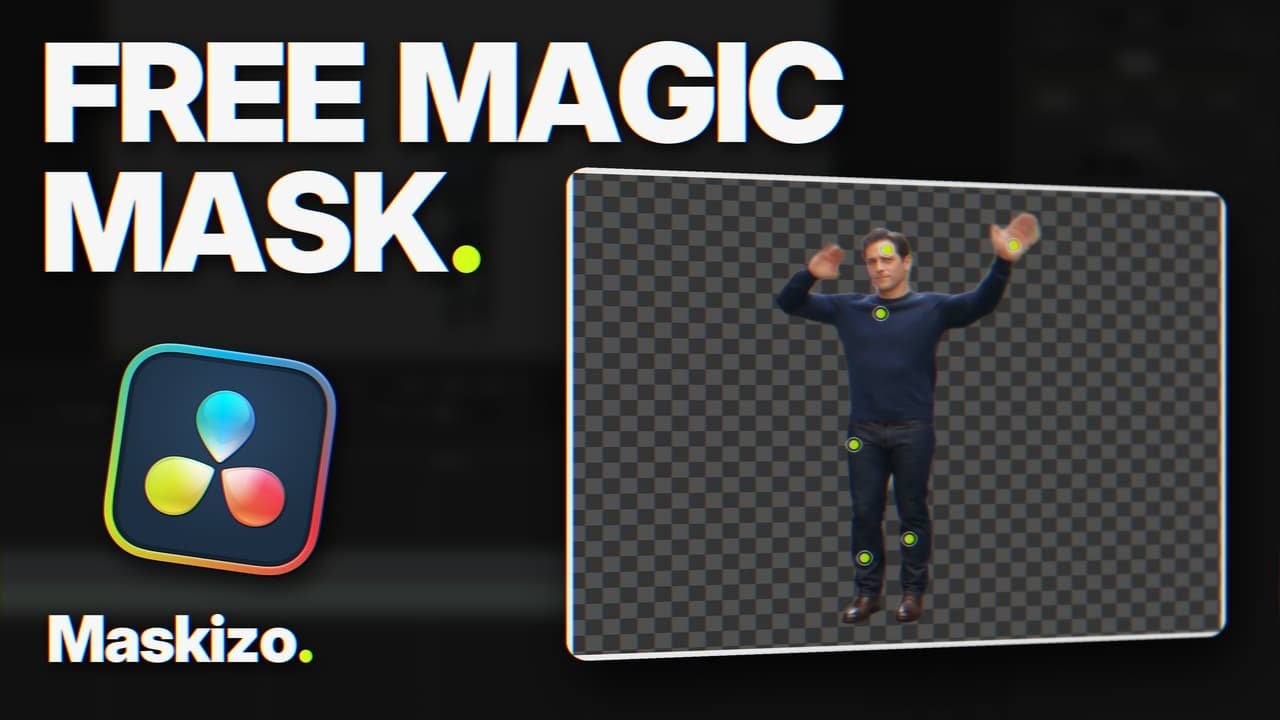
Maskizo cuts a person or an object out of a clip with Meta’s open SAM 2.1 models. They run on your own computer and come with the plugin, so nothing is uploaded and there is no account. Put Maskizo on a clip on the Edit page, or use it as a node on the Fusion page.

Click the subject in the viewer to keep it, click what does not belong to cut it away, then Confirm Mask. Track follows the subject through the clip: backward, forward or both ways from the frame you are on. If the mask slips, fix the points on that frame and Apply Corrections.

View shows the result as a Cutout or as a Mask. On the Refine page, set how strongly the mask applies, refine and soften its edge, grow or shrink it, or invert it.

Requirements

Software
DaVinci Resolve Studio 21.1 or newer, on the Edit and Fusion pages
Operating system
Windows 10 (version 1903 or later) or Windows 11, 64-bit; macOS 14 or later on a Mac with Apple silicon (M1 or newer)
Graphics
On Windows, any graphics card that runs DirectX 12; without one Maskizo runs on the processor, slower. Better quality needs the graphics card and about 2.2 GB of its memory free; otherwise Maskizo uses Balanced. Tracking on the graphics card needs about 1.4 GB of free graphics memory
Memory
16 GB recommended
Disk space
About 1.2 GB on Windows. On a Mac, about 1.4 GB, plus up to about 3 GB of prepared models that macOS keeps as a cache. Tracking keeps every captured frame, about 1.5 MB a frame at 1080p (a 3-minute clip is about 6.5 GB); Maskizo uses at most 20 GB unless you change the limit, and always leaves 5 GB of the drive free
License
None: no key, no activation and no account
Download
Installers for Windows and macOS on your personal download page

Questions about your setup? Ask in the Clipizo Discord or send us a message.

Key features

  • Click to select: Keep points mark the subject, Cut points take away what does not belong to it.
  • Confirm Mask, then track backward, forward or both ways through the clip.
  • Apply Corrections rebuilds the tracked mask after you fix points.
  • Three qualities: Balanced, Faster and Better.
  • View the result as a Cutout or as a Mask.
  • Refine: Strength, Refine Edges, Soften, Grow / Shrink and Invert.
  • On Windows, Saved Masks keeps tracked masks as image sequences to use again.
  • Meta’s open SAM 2.1 models run on your own computer and come with the plugin: nothing is uploaded, and nothing is downloaded after the install.
  • Uses the graphics card: any DirectX 12 card on Windows, the Mac’s own on Apple silicon. The processor is the fallback.
  • On the Edit page it goes on a clip; on the Fusion page it is a node.
  • Free download, no key.

Best for

  • Cutting out people
  • Removing a background
  • Text behind a subject
  • Colour and effects on one subject
  • Object masks
  • Help with rotoscoping
Setup & help guide for Maskizo Install, find it in Resolve, the controls, common problems, uninstall

Maskizo v1.1.1 beta: Windows 10 (version 1903 or later) or Windows 11, 64-bit, or macOS 14 or later on a Mac with Apple silicon (M1 or newer). DaVinci Resolve Studio 21.1 or newer. v1.1.1 is a new installer for the Mac; on Windows the installer is v1.1’s, with the same plugin.

Install
  1. Save your project and close Resolve.
  2. Windows: run Maskizo-v1.1-Windows-x64-Setup.exe. If “Windows protected your PC” appears, choose More info, then Run anyway, and allow the administrator prompt.
  3. macOS: open Maskizo-v1.1.1-macOS-arm64.pkg and enter your Mac’s password. If macOS says it can’t verify the developer, open System Settings → Privacy & Security and choose Open Anyway. The installer does not run while Resolve or Fusion is open.
  4. Start Resolve again. A newer installer updates Maskizo the same way and keeps the version it replaces as one rollback copy; your projects and their masks keep working.
Where it appears in Resolve

Search Maskizo in the Effects panel: it is under OpenFX, in the Clipizo group. Drag it onto a clip.

On the Fusion page, find it in the Effects Library under OpenFX, in the Clipizo group, or press Shift+Space and type Maskizo; then view the node.

The Inspector has four pages: Select, Track, Refine and Settings.

You click points in the viewer. On the Edit page, set the viewer’s overlay menu, at its lower left, to Open FX Overlay; on the Fusion page, select the node.

Controls in plain words

Some controls appear only after choosing the relevant mode.

Select
Edit Points / Show Points
Edit Points lets clicks in the viewer add and remove points; Undo takes a point edit back. Show Points shows or hides their markers and a strip below the picture, which has a diamond on every frame where you placed points and a bar over the frames those points apply to. Zoom the viewer out a little to see the strip.
Click to
Keep: a click marks the subject. Cut: a click marks what does not belong to it. Click a point again to remove it. On Windows, a Ctrl- or Alt-click adds a Cut point; on a Mac, a Control-, Option- or Command-click. At most six points per keyframe.
Confirm Mask
Makes the mask from your points on the frame you are on. After you add or remove points, the mask waits for this button, so you can place every point first.
Quality
Balanced, Faster or Better. A new Maskizo starts on Better; without about 2.2 GB of free graphics-card memory, or on the processor, Better uses Balanced instead.
Start Over
Clears the points and goes back to selecting. Undo brings them back. Captured frames and masks stay on the disk.
View
On every page but Settings. Cutout shows the subject in its own colours on a transparent background; Mask shows it in white.
Track
← / ↔ / →
Track the subject from the frame you are on: backward, both directions or forward. On the Edit page, Maskizo first captures the frames it will track (from the frame you are on to the end with →, to the start with ←, the whole clip with ↔), and Resolve is busy until that ends (on a fast PC about 11 frames a second at 1080p); a progress window shows how far it is and has Cancel. On the Fusion page it first renders the composition’s render range. Cancel keeps the masks already made.
Apply Corrections
After you change points or Quality, rebuilds the tracked mask from the frames it already has, without capturing again. If the clip itself changed, use a Track button instead.
Refine
Strength
How strongly the mask applies: at 0 the clip keeps its own transparency, at 1 the whole mask applies (1 at first).
Refine Edges
Snaps the mask’s edge to the picture and makes faint, uncertain areas solid or clear: 0 is the model’s raw mask, 1 the crispest (0.5 at first).
Soften / Grow / Shrink
Soften feathers the edge. Grow / Shrink widens the mask or trims it. Both are in pixels.
Invert
Keeps everything but the subject.
Settings
Device
On Windows: Auto (GPU) uses the graphics card, CPU the processor. A Mac always uses its own graphics, and the processor only if that fails.
Open Folder
Opens this Maskizo’s folder: its points, captured frames and masks.
Saved Masks
On Windows: lists every mask Maskizo kept, newest first, with a preview, its frames, date and size. Choose Cutout or Mask under Drag as, then drag a card out: you get a folder of transparent PNG frames, an image sequence to use again.
Storage
Shows how much space Maskizo uses, sets its limit, and frees space it can make again (moved to the Recycle Bin or the Trash after you confirm).
Common problems
Missing from Effects
Run the installer again with Resolve closed, then start Resolve.
The installer is blocked
The installers are not signed yet. Windows: if “Windows protected your PC” appears, click More info, the small link under the message, then Run anyway. Or right-click the installer, choose Properties, tick Unblock and click OK, then run it. With Smart App Control on, Windows blocks unsigned apps and offers no Run anyway. macOS: System Settings → Privacy & Security → Open Anyway.
The Mac installer says “The installation failed”
With v1.1 or older, an open DaVinci Resolve or Fusion ends the install with “The installation failed”. Quit both fully (Resolve can keep running for a minute after you quit it; check Activity Monitor), then open the installer again. From v1.1.1 the installer tells you itself: “Quit DaVinci Resolve first”. If it still fails, send us the installer’s message through the contact page, or choose Window > Installer Log in the installer, pick Show All Logs, and send the lines that start with “Maskizo:”.
Clicks in the viewer do nothing
On the Edit page, set the viewer’s overlay menu, at its lower left, to Open FX Overlay, and turn Edit Points on. Show Points alone does not let you edit.
A tracked clip doesn’t play smoothly on the Edit page
Maskizo draws every frame Resolve plays, and with large frames or on a slower computer it may not keep up. Turn on Resolve’s render cache: choose Playback > Render Cache > Smart and wait until the line above the clip turns blue.
Resolve is busy during Track
On the Edit page, Maskizo captures the frames it will track before it tracks them. Its progress window shows how far it is, and Cancel keeps the masks already made.
Tracking stops for lack of space
Tracking keeps every captured frame. Open Settings, then Storage, to free space or raise the limit; Maskizo always leaves 5 GB of the drive free.
Better is slow or looks like Balanced
Better needs the graphics card and about 2.2 GB of its memory free; without them Maskizo uses Balanced. On a Mac with 8 GB of memory, Balanced is the practical choice.
The first use after installing takes longer on a Mac
The first use of each quality prepares its model once, about 20 to 30 seconds. macOS may clear that cache, and Maskizo then prepares it again.
Uninstall
  1. Windows: close Resolve, then open Settings → Apps → Installed apps → Maskizo → Uninstall. Your masks in Documents\Clipizo\Maskizo stay.
  2. macOS: quit Resolve, then move Maskizo.ofx.bundle in /Library/OFX/Plugins to the Trash. To free up to about 3 GB more, also move the Maskizo folder in ~/Library/Caches to the Trash.
  3. On a Mac these stay unless you remove them too: the Fusion node default and the Maskizo Compact Inspector script in /Library/Application Support/Blackmagic Design/DaVinci Resolve/Fusion (Defaults and Scripts), a rollback copy in /Library/Application Support/Clipizo/OFXBackups/Maskizo if an older Maskizo was replaced, and your masks in ~/Library/Application Support/Clipizo/Maskizo.

Still stuck? Contact Clipizo with the plugin version, Resolve version, operating system and the exact error message.

Get Maskizo

Check the requirements first.

Free304 downloads Download

Updates log

v1.1.1 Released 27 Nov 2026

A new installer for the Mac. Maskizo itself works the same as in v1.1, and Windows users don’t need to update. To update on a Mac, save your project and quit DaVinci Resolve, open the new installer, then start Resolve again.

What's new in 1.1.1

  • Mac only: if DaVinci Resolve or Fusion is open, the installer now says “Quit DaVinci Resolve first” before it starts. Before, an open Resolve ended in “The installation failed”.
  • If Resolve is still closing when the installation starts, the installer waits up to a minute for it to finish.
  • Maskizo itself works the same as in v1.1. Windows users don’t need to update: the Windows installer is still v1.1’s.
v1.1 Released 27 Nov 2026

Tracked clips play faster on the Edit page. To update, save your project and close Resolve, run the new installer, then start Resolve again.

What's new in 1.1

  • Tracked clips play faster on the Edit page, most of all the first time you play them.
  • Maskizo uses more of your processor’s cores to show the mask.
  • Your projects, settings and masks keep working, and clips you tracked before don’t need tracking again.
  • For the smoothest playback of a tracked clip, turn on Resolve’s render cache (Playback > Render Cache > Smart) and let it finish before you play.