very good
Toolizo
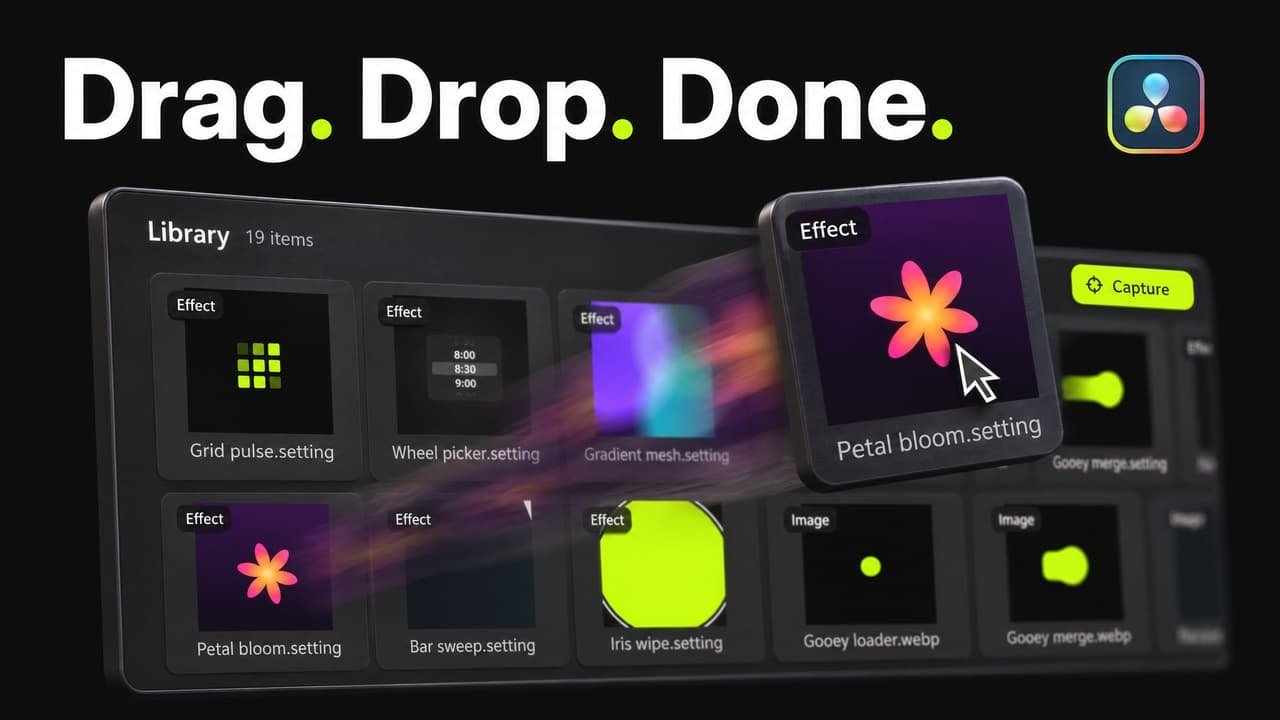
A media library inside DaVinci Resolve. Keep Fusion effects, images, videos and sounds in folders, drag them onto the timeline or the Fusion page, and add effects to the Edit page as titles. Free to download.
Free872 downloads Download
I've had a good experience using Toolizo. The platform is easy to navigate and offers useful features. It helps make my workflow more convenient and saves time. Overall, it's a useful tool for creators and freelancers.
Write a review
After you download Toolizo, your download email has a Leave a review link. Reviews written there appear here labelled Verified download.
Write a review as a Clipizo member
Uses a free Clipizo account. Your review is labelled Clipizo member and appears after approval.
Verified reviews come from Clipizo downloads · Member reviews are moderated · No review is hidden for its rating.
Overview
Toolizo opens as a window inside DaVinci Resolve. Your library is a folder on your disk: drop files in, sort them into folders, star your favorites and put everything in your own order.
Drag a tile onto the timeline or the Fusion page. Nodes you select on the Fusion page become a reusable effect with one click.
Add to Edit Page turns an effect into a title, a generator or an effect in Resolve's own Effects library, so it is there in every project. That goes for your own effects and for the motion graphics you import from the Clipizo Library.
The Clipizo Library is built in: the expressions, motion graphics, node trees and scripts from clipizo.com, with previews, ready to import. Link Toolizo once to a free Clipizo account to use it.
Requirements
- Software
- DaVinci Resolve 21 or newer
- Operating system
- Windows 10 or 11, 64-bit; macOS 12 or later on Apple silicon or Intel (Resolve 21.1 itself needs macOS 15 on Apple silicon)
- License
- None: no key and no activation. The Clipizo Library inside Toolizo needs a free Clipizo account
- Download
- A ZIP with the installer for Windows or macOS on your personal download page
Questions about your setup? Ask in the Clipizo Discord or send us a message.
Key features
- One library for Fusion effects (.setting), images, videos and sounds, with thumbnails, video loops and sounds that play.
- Search across the whole library, filter by kind, and sort by your own order, by name or by recently added.
- Favorites, folders you can nest and reorder, and colored separators.
- Drag onto the timeline or the Fusion page, or double-click an effect to add its nodes, connected.
- Capture: the nodes selected on the Fusion page become an effect in one click. Copying nodes and pasting them into Toolizo works too.
- Add to Edit Page: your effects and the Clipizo Library items you import become titles, generators or effects in Resolve's own Effects library, under Toolbox on the Edit page.
- Brands: a folder per brand for its media, effects and color palettes. Click a swatch to copy its hex.
- Fusion Mode: the window as a slim bar over Resolve, horizontal or vertical.
- The Clipizo Library and My items: import from clipizo.com, and keep your own effects, expressions and scripts in your free Clipizo account to use them on any computer.
- Free download, no key.
Best for
- A library of your Fusion effects and node setups
- Edit page titles from your own effects and the Clipizo Library
- Stock footage, overlays and sound effects at hand
- Brand kits with logos and colors
- Reusing motion graphics across projects
- Clipizo Library items without leaving Resolve
Setup & help guide for Toolizo Install, find it in Resolve, the controls, common problems, uninstall
Toolizo v1.4, the media library plugin: Windows 10 or 11, 64-bit; macOS 12 or later on Apple silicon or Intel (Resolve 21.1 itself needs macOS 15 on Apple silicon). DaVinci Resolve 21 or newer.
Install
- Extract the complete ZIP first, and read legal/CLIPIZO_PRODUCT_LICENSE.txt.
- Save your project and quit DaVinci Resolve.
- Windows: run Toolizo-v1.4-Setup.exe and allow the administrator prompt. If “Windows protected your PC” appears, choose More info, then Run anyway. The installer isn't signed.
- macOS: open Toolizo-v1.4.pkg and enter your Mac's administrator password. If macOS won't open it, right-click it, choose Open, then Open again. If it is still blocked, open System Settings → Privacy & Security and choose Open Anyway. The package isn't notarized by Apple.
- The plugin goes where Resolve looks for OpenFX plugins, and Toolizo gets an entry in Resolve's Scripts menu.
- Start DaVinci Resolve.
Where it appears in Resolve
Workspace > Scripts > Toolizo opens the window.
Or add the Toolizo effect to a clip (Effects > OpenFX > Clipizo > Toolizo) and click Open Toolizo in the Inspector.
Your library is a folder, Clipizo > Toolizo > Library in your Documents, made the first time. To keep it somewhere else, right-click Library in the sidebar and choose Change Library Folder.
Controls in plain words
Some controls appear only after choosing the relevant mode.
Library
- Import media
- Drop files or folders onto the window, or right-click empty space in the grid and choose Import Media. Toolizo copies them into the library, each kind in its own folder.
- Search and filters
- Search looks through the whole library. The kind filter shows Effects, Images, Videos or Sounds; the order is your own, by name or by recently added.
- Favorites
- Star a tile to add it to Favorites, which keep their own order.
- Folders and separators
- Make, rename, nest and reorder folders in the sidebar. Drag tiles into your own order and add colored separators.
- Delete
- Moves the item to the Recycle Bin or the Trash, after asking.
Using items
- Drag
- Drag a tile onto Resolve's timeline or the Fusion page.
- Add nodes
- Double-click an effect to add its nodes on the Fusion page, connected. The bar's settings can make it one click.
- Capture
- Turns the nodes selected on the Fusion page into an effect. You can also copy nodes and paste them into Toolizo.
- Add to Edit Page
- Right-click an effect to put it into Resolve's own Effects library as a title, a generator or an effect. Toolizo offers the kind it looks like. It shows under Toolbox > Titles, Generators or Effects on the Edit page; if Resolve doesn't list it yet, start Resolve again. Remove from Edit Page takes it out again.
- Edit Effect
- Changes an effect's name, icon and code.
- Edit Page Presets
- In the menu: a list of everything Toolizo added to Resolve's Edit page. Click one to take it off, or Remove All.
- Fusion Mode
- Shows Toolizo as a slim bar over Resolve, horizontal or vertical.
Brands
- New brand
- Makes a folder for a brand in the sidebar, for its media, effects and color palettes.
- Palettes
- Click a swatch to copy its hex. Pick colors in the color picker or type them as hex or rgb().
Clipizo Library and My items
- Connect
- Links Toolizo to a free Clipizo account in your browser, once.
- Clipizo Library
- Expressions, motion graphics, node trees and scripts from clipizo.com. Double-click or drag an item to import it. An imported motion graphic can then go to the Edit page as a title with Add to Edit Page.
- My items
- Your own items in your Clipizo account, on any computer. Save an effect, an expression or a script. Items are private unless you show them on your profile.
Settings
- Launch with Resolve
- Opens Toolizo each time Resolve starts. Off until you tick it.
Common problems
- Windows says it protected your PC
- Click More info, then Run anyway. The installer isn't signed.
- Windows blocks the installer (error 4551)
- Toolizo isn't code-signed yet, and Windows 11's Smart App Control blocks apps that aren't. Toolizo installs and loads only on a PC where Smart App Control is off (Windows Security > App & browser control). Turning it off lowers Windows' protection, and some Windows versions can't turn it back on without a reset, so check that before you decide.
- A Mac won't open the package
- Right-click it, choose Open, then Open again. If macOS still blocks it, use System Settings > Privacy & Security > Open Anyway.
- Toolizo is missing from the Scripts menu or the effects
- Run the installer again while Resolve is closed, then start Resolve.
- Capture or adding nodes does nothing
- Open Toolizo from Workspace > Scripts > Toolizo or let Launch with Resolve open it; a window opened from the Inspector can't do either.
- The Clipizo Library asks to connect
- Click Connect and link Toolizo to your free Clipizo account in the browser. The page shows the same code as Toolizo.
Uninstall
- Close Resolve. Windows: Settings > Apps > Installed apps > Toolizo > Uninstall. macOS: quit Resolve, then move Toolizo.ofx.bundle in /Library/OFX/Plugins and Toolizo.lua in /Library/Application Support/Blackmagic Design/DaVinci Resolve/Fusion/Scripts/Utility to the Trash.
- Your library and settings stay.
Still stuck? Contact Clipizo with the plugin version, Resolve version, operating system and the exact error message.
Get Toolizo
Check the requirements first.
Free872 downloads Download
Updates log
v1.4
Toolizo v1.4: run Lua scripts from Toolizo, keep your own scripts as buttons, pin buttons to Fusion mode's bar, and browse its folders without the menu closing. Download it again to get it.
What's new in 1.4
- Run Script in a Clipizo Library or My items script's menu runs it in the comp on the Fusion page, as one undo step.
- Keep your own Lua scripts as buttons: New Script..., or a script you paste, saves one in your library, and a double-click runs it.
- Pin buttons to Fusion mode's bar: pinned ones come first in every folder, in the order you give them.
- Fusion mode's folder menu works like the sidebar: its sections fold, and it stays open while you move between folders.
- Capture Selected Nodes is in the bar's menu, next to New Folder.
v1.3
Toolizo v1.3: imports land where you put them, sidebar sections fold, Library tiles add straight to the Edit page, full names show on hover, and Toolizo tells you about updates. Download it again to get it.
What's new in 1.3
- Imports from the Clipizo Library and My items go into the folder you pick or drop them on; no extra folders, and the old import folders are tidied into Effects.
- Every sidebar section folds: My items, Brands and Library.
- Library and My items tiles already in your library add straight to the Fusion or Edit page; captured text comps go to the Edit page as titles.
- Hover a name cut short to see it whole.
- Toolizo tells you when a newer version is out.
- Settings: Hide to tray (Windows) and a ? that explains Loop library motion graphics.
v1.2
Toolizo v1.2: paste images, Shift+Space stays with Resolve, minimize, folders for My items' kinds, and Library motion graphics that start with your comp and play once. Download it again to get it.
What's new in 1.2
- Paste a picture from the clipboard, such as a screenshot or an image copied in a browser, straight into your library.
- Shift+Space in Toolizo goes back to Resolve, and nodes added with the mouse hand Resolve the keyboard back.
- A minimize button, and on Windows a taskbar button of Toolizo's own to bring it back.
- Folders under My items for Expressions, Motion graphics, Node trees and Scripts.
- Clipizo Library motion graphics start on your comp's first frame and play once. Tick Loop library motion graphics in Settings to keep them looping.
v1.1.2
Toolizo v1.1.2 shows your My items' pictures, animated ones playing. Download it again to get it.
Bug fixes
- My items shows your presets' pictures, animated GIF and WebP ones playing, and an import keeps the picture as the effect's icon.
v1.1.1
Toolizo v1.1.1 fixes Capture in the window that opens with Resolve. Download it again to get it.
Bug fixes
- With Launch with Resolve on, Capture and adding nodes now work in the window that opens at Resolve's start.
v1.1
Toolizo v1.1 lists everything it put on Resolve's Edit page, so you can take it off again. Download it again to get it.
What's new in 1.1
- Edit Page Presets, in the menu, lists everything Toolizo added to Resolve's Edit page, to take off one by one or all at once.